How to Adjust Ratio on CapCut PC in 2026 – Best Editing Tips for Creators
The ratio is highly important when you are editing videos in Tik Tok, YouTube, or Instagram. The same video that appears beautiful in a PC display might appear undercut or elongated in a phone. And well… CapCut PC makes ratio changing very easy, but some users don’t notice where the option is because it’s hidden on the right panel. So if you’re confused about how to adjust ratio on CapCut PC, don’t worry, it’s actually super simple.
Let’s break it down step by step, in clean and easy words.
Why Ratio Matters in CapCut PC
Different platforms use different video sizes:
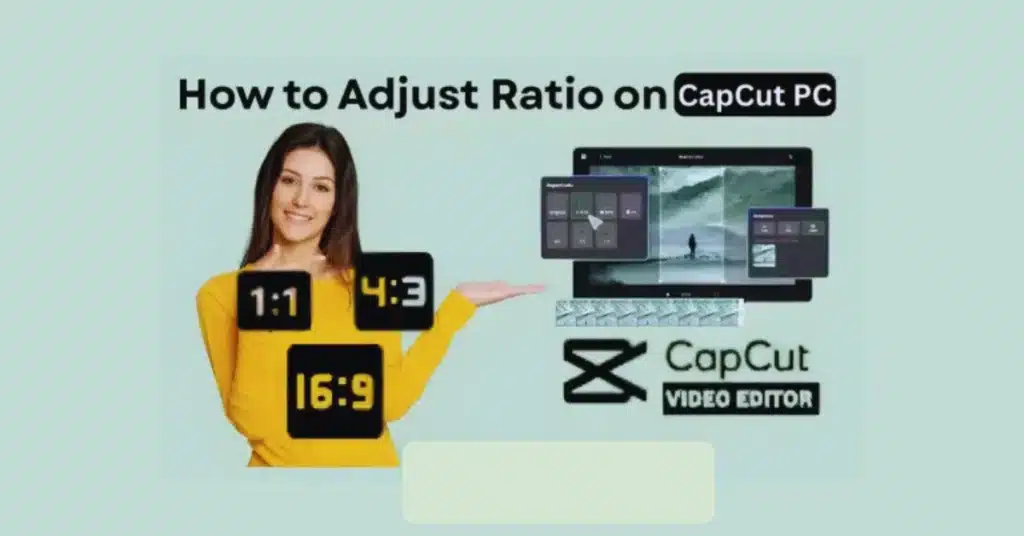
- TikTok → 9:16
- YouTube → 16:9
- Instagram Post → 1:1
- Reels/Shorts → 9:16
- Facebook Videos → 4:5
If you upload the wrong ratio, parts of your video may get cut out. That’s why many editors adjust the ratio before editing anything else.
CapCut for PC, CapCut for Mac, and even CapCut Old Version have the ratio tool, so you don’t need any CapCut Pro APK or Mod APK for this.
Step 1: Open Your Video in CapCut PC
Start with the basics:
- open CapCut PC
- create a new project
- import your video
- drag it into the timeline
Once your clip is placed, you’re ready to change the ratio.
Step 2: Find the “Ratio” Button
The ratio tool is on the top of the preview screen.
- look at the top center
- you will see a button labeled Ratio
- click it to open all the available sizes
Due to a very old version of CapCut PC, the button may instead be located in the right side panel.
Step 3: Choose the Ratio You Need
CapCut PC gives all the standard platform ratios:
- 9:16 (TikTok, Reels, Shorts)
- 16:9 (YouTube)
- 1:1 (Instagram square)
- 4:5 (Facebook and Instagram portrait)
- 3:4
- Custom ratio
Just click the ratio you want. Your project layout will adjust automatically.
Step 4: Adjust Video Position After Ratio Change
Sometimes, after changing the ratio, your video won’t fit perfectly.
You may see:
- black areas
- cropped edges
- empty space on the sides
So you need to reposition the video:
- click the video layer
- drag it left or right
- zoom in slightly
- center the subject
CapCut lets you zoom without losing too much quality, especially if the video is HD or 4K.
Step 5: Use Background Options (Optional)
If your video doesn’t fully fit the ratio, CapCut PC offers background styles like:
- blur background
- solid color
- custom image background
- gradient styles
Just look on the right panel under Background and select what you like.
A blurred background looks great for 16:9 videos turned into 9:16.
Step 6: Lock Your Ratio for the Whole Project
After adjusting the ratio, leave it as it is until the export. Don’t switch ratios halfway unless your video really needs it. CapCut APK Download for PC maintains the chosen ratio until you export the final video.
Common Problems When Changing Ratio
1. “My video is too small after changing ratio.”
Just zoom it in slightly and reposition.
2. “Why is my face cropped?”
Move the clip left or right. CapCut lets you adjust frame position freely.
3. “The blur background looks low quality.”
Switch to High Quality Preview mode or update CapCut PC.
4. “Ratio button not showing.”
You might be using CapCut Old Version. Updating usually solves it.
Extra Tips for Cleaner Ratio Adjustments
- Always set ratio first before editing
- Use 9:16 for TikTok, Reels, Shorts
- Use 16:9 for YouTube long videos
- Use 1:1 for profile content or promos
- Try to keep your subject centered
- Avoid stretching the video
A correct ratio makes your video look more professional instantly.
Conclusion
One of the easiest things to do in CapCut PC when you are editing is to change the ratio, as it is one of the biggest factors that determine how your video will look on other platforms. Whether you are creating Tic Tok clip, YouTube or square style Instagram posts, the Ratio button in CapCut Pro can change the format within a few seconds. Simply find the appropriate size, position your clips, and export without any problems.
No special tools needed — everything works right inside CapCut PC.
FAQs
1. Where is the ratio setting in CapCut PC?
It’s located on the top of the preview area. Click the Ratio button to see all options.
2. Can I make custom ratios?
Yes, choose Custom and enter your own width and height.
3. Why does my video look cropped after changing ratio?
You need to reposition or zoom the clip after switching ratios.
4. Can I blur the background to fill empty space?
Yes, CapCut PC has blur background options on the right panel.
5. Does ratio affect video quality?
Not really. Quality depends on export settings, not the ratio itself.
6. Does CapCut Old Version support ratio change?
Yes, but newer versions offer more preset sizes and better preview.